Pages

Showing posts with label 7. Show all posts

Thursday, December 22, 2016

HTC Sense 7 0 Custom Navigation Bar

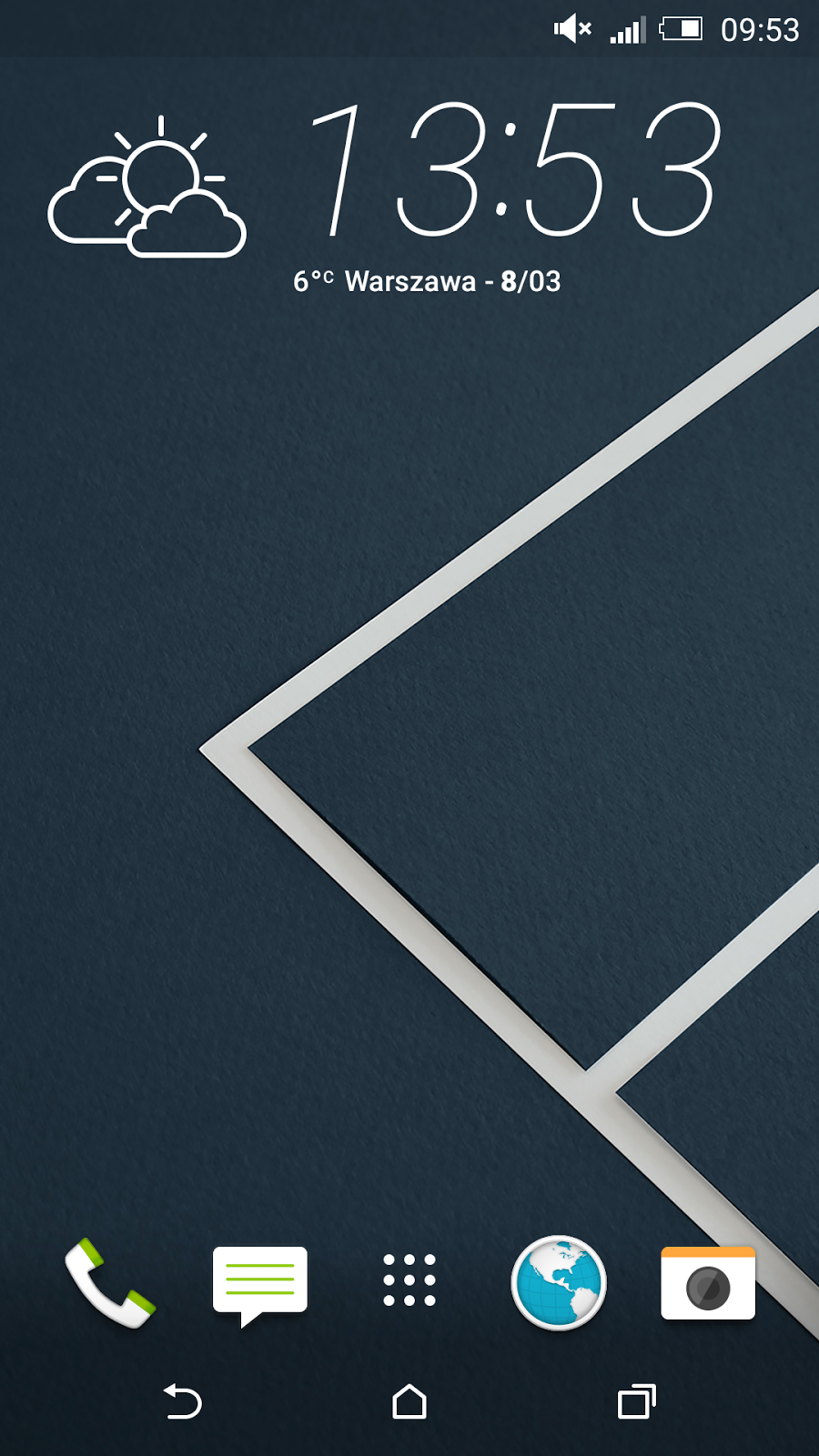
Youve probably heard already about the new cool HTC Sense 7.0 feature called Themes Generator. In fact thats not the only surprise in the newest HTC custom user interface. In the sixth version of the Sense UI HTC opted for extensive configuration options of the Android Navigation Bar. Now in addition to the existing three main on-screen buttons you can choose a 4th button with a specific function.

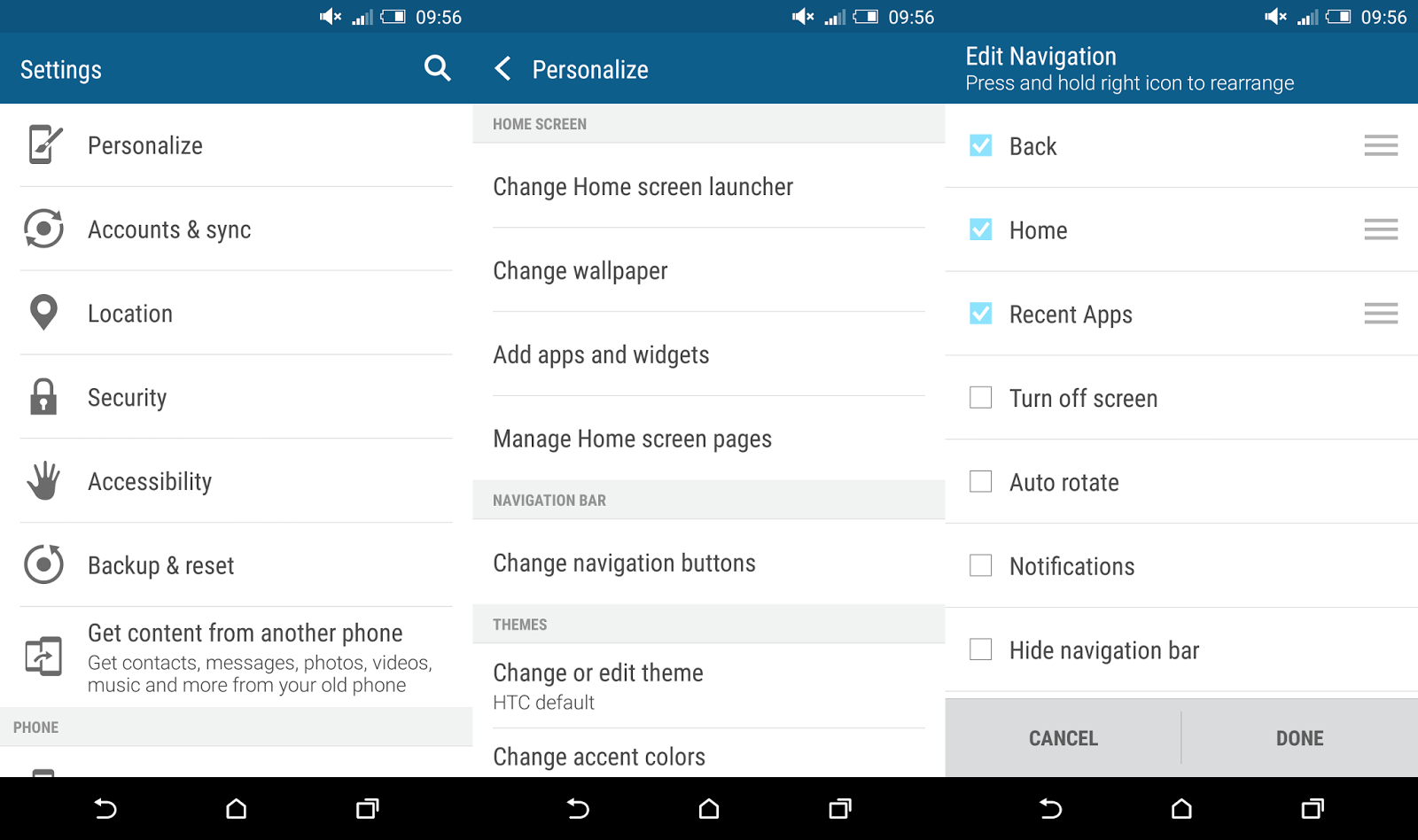
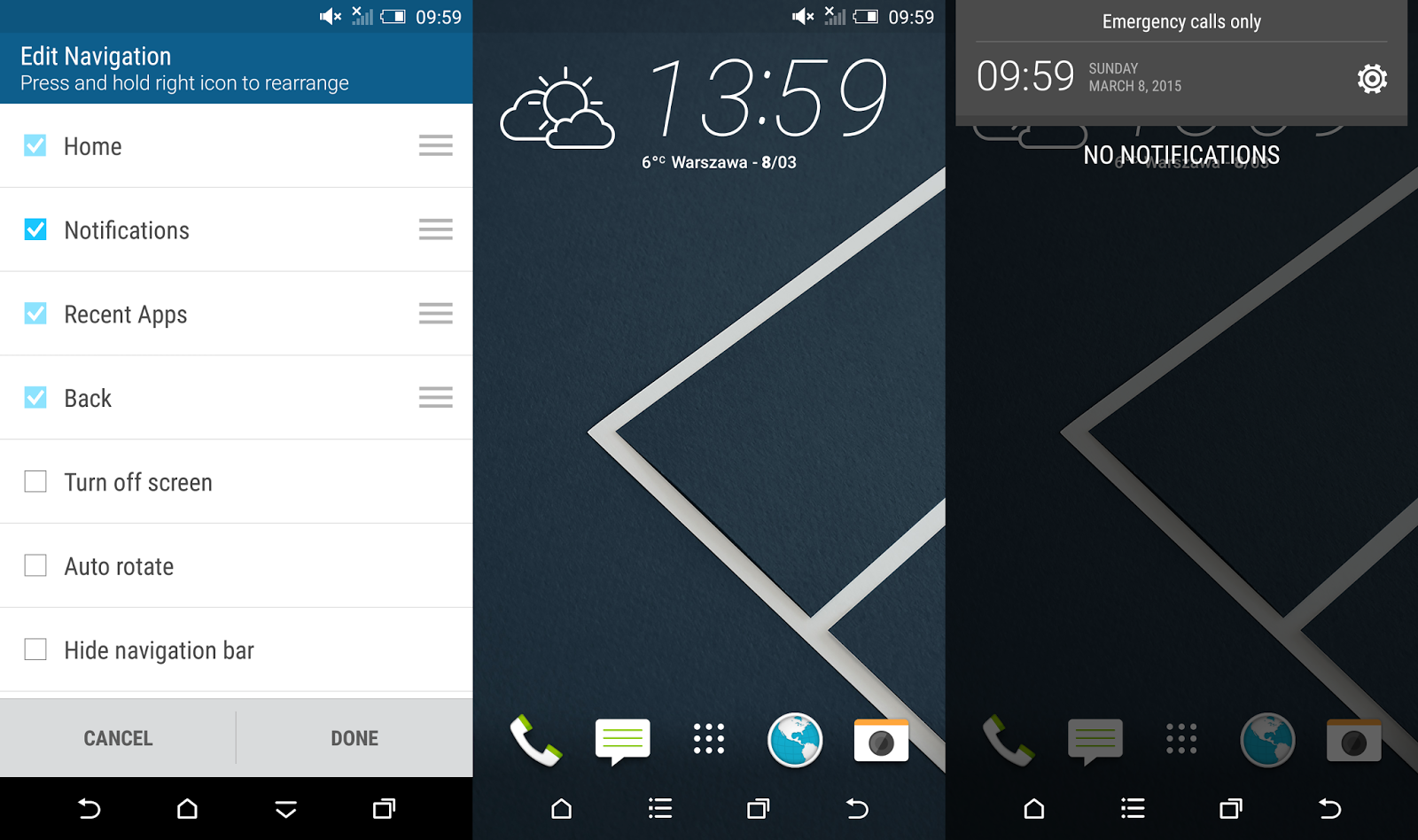
To enter these settings you need to go to Settings ---> Personalize ---> Change navigation button. As you can see, HTC gave us a couple of options there:
  • Back
  • Home
  • Recent apps

These are the default on-screen buttons and you cant disable any of it. Plus we got several more, but you can enable only one at a time:
  • Turn off screen
  • Auto rotate
  • Notifications
  • Quick settings
  • Hide navigation bar
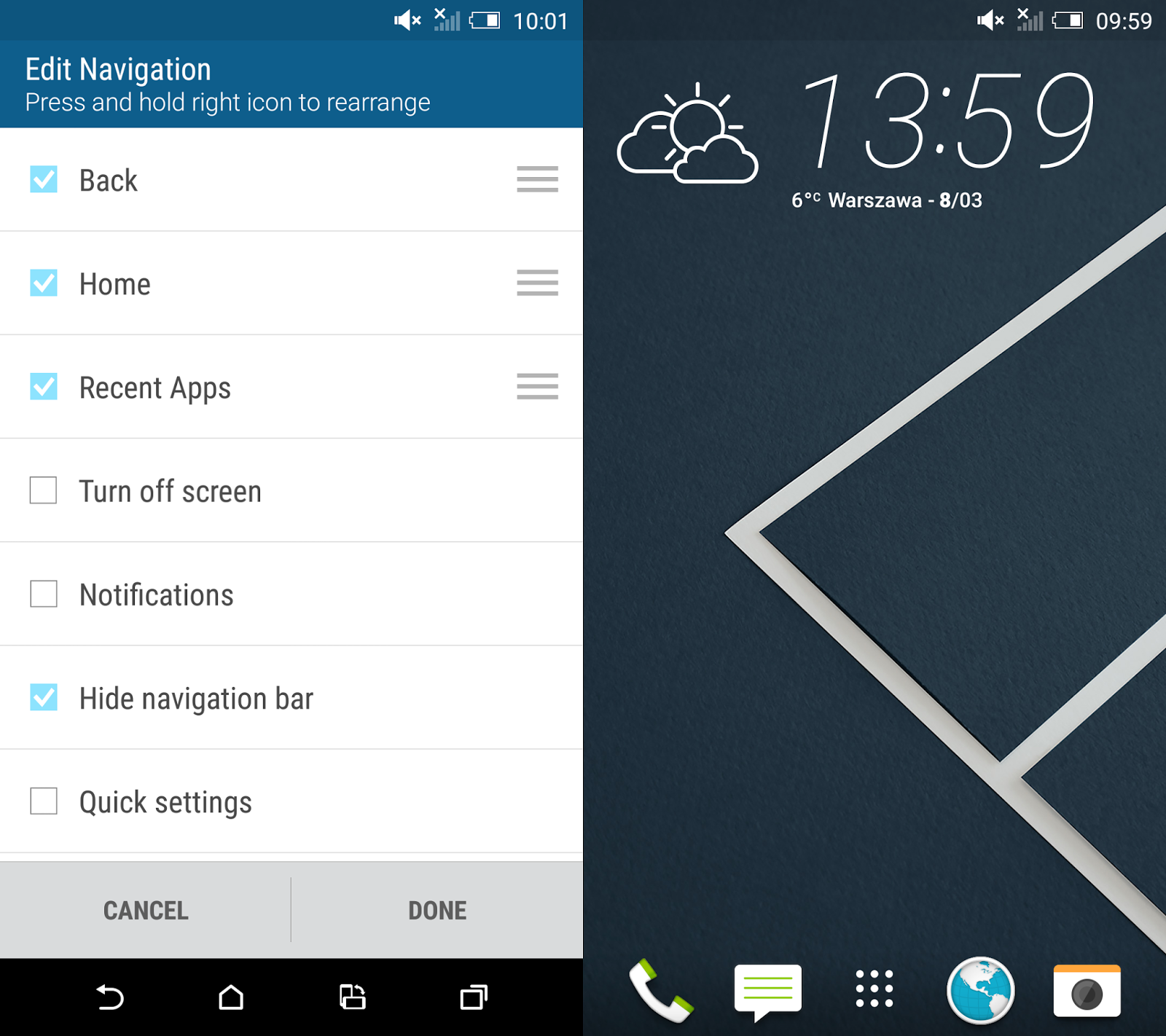
According to the screenshot you can not only add a 4th button but also re-arrange the position of all buttons. That means you can have your extra button either on the right or left side of the navigation bar or between other buttons.

The "Turn off screen" button can be really handy in case you want to switch off your screen really fast, without moving the finger outside the screen area. In combination with HTC Motion Launch Gestures (double tap to wake-up in this case) you dont need to use power button any more!
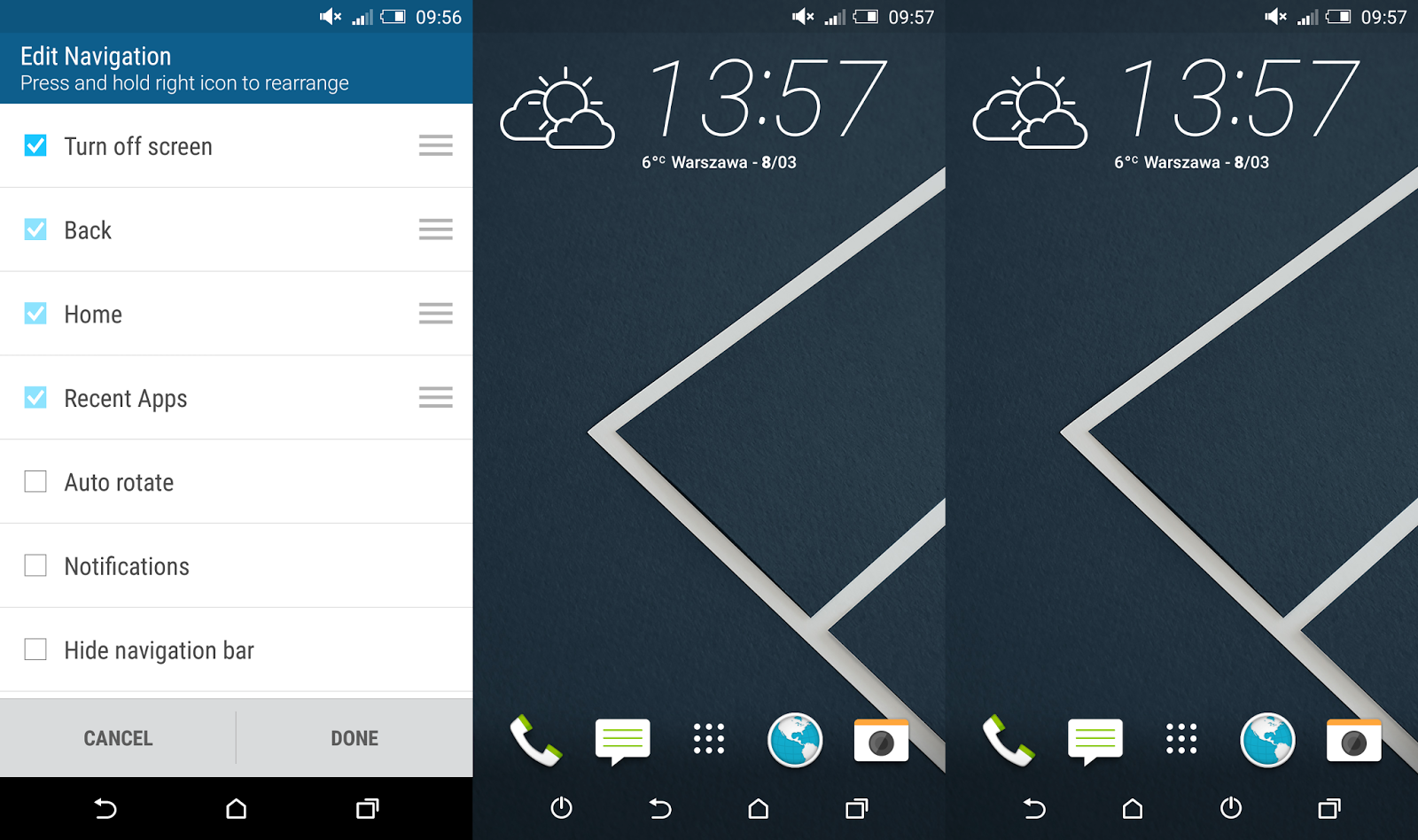

The "Auto rotate" feature doesnt seems like something I would access few times a day. Personally I would prefer to have a "Rotate" function there to force the screen orientation I want to use in a particular moment, no matter how I keep the device (horizontally or vertically).
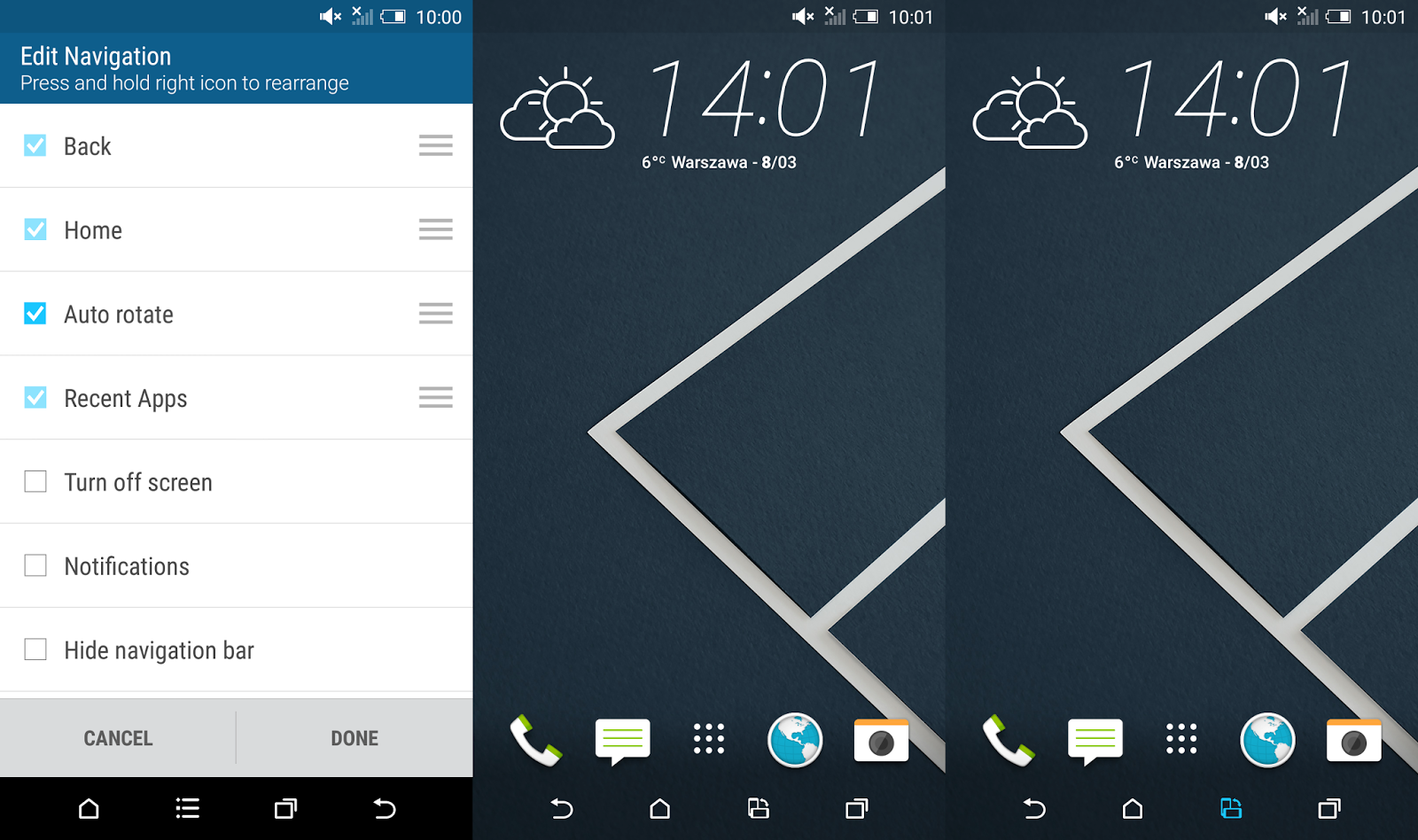

The "Notifications" button is a great alternate for the swipe down the status bar gesture when you want to access notifications.

The "Quick Settings" button, just like "Notifications" button allows you to quick access the pull down menu without having to swipe down from the top of the screen.


Last but not least, the "Hide navigation bar" button is one of my favourite. It allows you to completely hide the navigation bar and visually enlarge the home screen. To bring it back you just need to swipe up from the bottom part of the screen. Cool, isnt it?

Do you have any questions or comments? Feel free to share! Also, if you like this article, please use media sharing buttons (Twitter, G+, Facebook) below this post!


For latest news follow Android Revolution HD on popular social platforms:

Read More..

Saturday, December 17, 2016

HTC Sense 7 0 can we expect any of these


With HTC Sense 7.0 right around the corner I thought of making some little "wish-list" of a features I would love to see in the refreshed HTC UI. If you dont know yet - HTC Sense is so far the most advanced and by many known as the best custom Android User Interface. Apple has its iOS, Samsung has its plastic and HTC has its Sense UI.

None of the features are revolutionary, some of them are actually quite common or already available via 3rd party mods (like Sense Toolbox). The thing is, it would be great to have them (at least few of them) available out of the box. Lets go through the list!
  1. New section in / Settings / Personalize / called "Status bar" with the following features:
    1. possibility to remove the clock
    2. possibility to add XX % battery indicator, moved from / Settings /  Power / Show battery level
    3. possibility to have only XX % battery indicator without the battery icon
    4. possibility to have both XX % indicator and a battery icon (current solution). All these features related to the battery level can be sorted this way: / Settings / Personalize / Status bar / Show battery level: show battery icon | show battery level | show both battery icon and level
    5. possibility to change between 4G and LTE icons
  2. Increase the number of icons inside a folder - for some reason the maximum number of icons inside a folder is 20. With so many games and applications in the Google Play its really strange limitation. Im not a gamer, but I have more then 20 games. Shell I have folders like "Games 1", "Games 2", "Games 3" etc?
  3. Possibility to create folders in the app drawer when using the Alphabetical mode. So far we can add folders only in the "Custom" view mode. I would like to organize icons inside the app drawer into folders and keep the aliphatic order of the icons outside folders.
  4. Possibility to customize the battery saver feature - HTC in the Sense 4+ UI introduced a very useful toggle to turn on/off battery saver. However, its barely possible to customize it, even in the HTC Sense 6.0. Possibility to change the moment when the power saver mode is turned on, the CPU min/max frequencies, screen dim level etc. would be really great.
  5. Move the Flashlight and the Calculator apps from the /data/preload back to the /system/app location. I know - this has barely anything to do with the user interface, however I cant find a proper explanation why HTC decided to let these 2 stock apps be on the /data partition instead a /system partition. Its not a big deal as long as the bootloader is not unlocked. After unlocking the bootloader the content of /data partition is being wiped, so both - pretty useful - apps are gone.
  6. Independent Lock Screen short-cuts. I really miss the possibility to use different short-cuts on the Lock Screen and different on the main screen.
  7. Easy copy phone number from the contact details page. Let me explain it this way - go to the People app, enter any contact and long press on the phone number. There is no "Copy" on the list. Instead, you need to select "Edit" first and then select the entire number and copy it. Why not making it easier with just "Copy" command on the long press menu?
  8. Restore the sliding ("scrolling") wallpaper. Or at least give provide an option in the / Setting / Personalize / Home screen to choose between "static" or "scrolling" wallpaper. I really liked that Android feature!
  9. Simple 1x1 alarm clock widget - it would be great to have one, small 1x1 widget that takes you directly to alarm clock settings.
So, what do you thing about these ideas? Do you think that some of them might be already in the HTC Sense 7.0? Or maybe you have something else in mind? Please share your opinion!

Do you have any questions or comments? Feel free to share! Also, if you like this article, please use media sharing buttons (Twitter, G+, Facebook) below this post!


For latest news follow Android Revolution HD on popular social platforms:

Read More..

Thursday, November 17, 2016

HTC Sense 7 0 Wallpapers

Earlier today you had a chance to read more details about HTC Sense 7.0 custom navigation bar. You are already familiar with the new HTC Sense Themes too, and now we want to show you brand new HTC wallpapers you can find in the newest Sense UI. Of course its nothing really major, but I enjoy exploring new HTC Sense 7.0 features and sharing it with you!

At the end of this article you can find a download link with all presented wallpapers.


Download link

Do you have any questions or comments? Feel free to share! Also, if you like this article, please use media sharing buttons (Twitter, G+, Facebook) below this post!


For latest news follow Android Revolution HD on popular social platforms:

Read More..

Monday, August 22, 2016

HTC Sense 7 0 Priority Ringtones

Continuing observations regarding the new HTC Sense 7.0 features its time to take a look at another very interesting aspect of the new HTC user interface - the Priority Ringtones. Priority Ringtones probably replaced the "DND" (Do Not Disturb) function as I cant find it any more in the Quick Settings menu. So how does it work?

To configure the Priority Ringtones you need use volume buttons. The volume slider UI is similar to the one known from the HTC Sense 6.0, however at the bottom of the box you can find 3 new buttons - "NONE", "PRIORITY" and "ALL". Volume settings menu after clicking the settings icon on the right part of the box looks exactly the same as in previous Sense version.


None

Using the first option - "NONE" simply means you will receive absolutely no sound notifications. Not even the alarms. In that mode your device is not allowed to give any sound. You can set this mode to be active for a particular time (15min, 30 min, 45 min, 1h, 2h, 3h, 4h, 8h) or indefinitely, meaning it will be active as long as you disable it.


Priority

In Priority mode you can basically choose what type of events, reminders, calls or messages (and from who) are allowed to interrupt you. You can choose to receive calls or messages from everyone, contacts only or favourite contacts only. You can also configure the days the priority mode is enabled by default (from Monday till Sunday) and hours - start hour and end hour.


All

The "ALL" mode simply means you will receive every kind of notification. In this mode everything gives a sound - alarm, phone call, message, notification, reminder etc. This mode is enabled by default.

If by any chance you havent yet read my previous HTC Sense 7.0 related articles heres a short reminder:
  • HTC Sense 7.0 - Wallpapers
  • HTC Sense 7.0 - Custom Navigation Bar
  • HTC Sense 7.0 - Themes Generator
  • HTC Sense 7.0 - Sense Home with Smart Folders
  • HTC Sense 7.0 - Photo Editor

Do you have any questions or comments? Feel free to share! Also, if you like this article, please use media sharing buttons (Twitter, G+, Facebook) below this post!


For latest news follow Android Revolution HD on popular social platforms:

Read More..

Sunday, July 24, 2016

HTC Sense 7 0 Themes Generator

One of the new HTC Sense features is the HTC Themes Generator. And its not only about the colour schemes of the UI elements. This time HTC went further and decided to create a various of different icons for each theme. It seems that HTC really listens to its fans, because the possibility to customize the look of the user interface is one of the biggest requests since years. HTC Sense 7.0 is definitely an evolution in a good direction!


In addition to the existing standard themes you have the ability to create your own ones too! Just look at the official video presenting the new HTC Theme Generator.


Do you have any questions or comments? Feel free to share! Also, if you like this article, please use media sharing buttons (Twitter, G+, Facebook) below this post!


Read More..

Monday, May 23, 2016

HTC Sense 7 0 G version explained

Together with the latest and greatest HTC One A9 we saw the HTC Sense 7.0 "G" edition user interface for the first time. What exactly is the "G" version and how it differs from the "regular" version?

Probably the "G" comes from a "Google", because HTC wanted it be as close to the stock Android 6.0 Marshmallow UX as possible, allowing for certain carrier requirements and feature necessities. So, for example, in the "G" edition we have the stock notification window and Quick Settings, while the full Settings menu is HTCs Sense version due to carrier customization requirements.

HTC Sense 7.0 (left) vs HTC Sense 7.0 "G" (right)

HTC also worked to reduce or eliminate duplicative apps in every case possible. So, for example, the HTC Music player is gone in favour of Google Music. In a couple cases HTC needed to pre-load HTCs apps to support certain features, such as HTC Gallery to support RAW images, in addition to Google Photos. So whats gone for sure?

- HTC Backup
- HTC Music
- Print Studio
- One Gallery
- Peel Smart Remote
- Polaris Office
- Scribble

All the rest seems to be still there. And it doesnt look much different to the Sense 7.0 "regular" version because a lot of components (such as Calendar, Mail, Clock, Camera, Sense Home, Weather etc.) are accessible via Google Play store. Whats also different is the HTC default accent colours, the "G" edition is a bit less colourful.

HTC Sense 7.0 (left) vs HTC Sense 7.0 "G" (right)

HTCs  plan when M8 and M9 begin rolling out Android 6.0 Marshmallow is to maintain UX consistency with Sense 7.

The main screen looks exactly the same, as well as most parts of the UI (except the colours scheme).

HTC Sense 7.0 (left) vs HTC Sense 7.0 "G" (right)

Do you have any questions or comments? Feel free to share! Also, if you like this article, please use media sharing buttons (Twitter, G+, Facebook) below this post!


For latest news follow Android Revolution HD on popular social platforms:

Read More..