Pages

Showing posts with label custom. Show all posts

Tuesday, January 17, 2017

HTC Sense 6 0 Bluetooth security issue explained

Bluetooth is not a new technology and has long been associated with hands free headsets but with newer devices over the last few years it has obviously evolved into a technology that connects to printers, headphones, speakers, cars and of course other phones.

It wasnt long ago that I still used a Microsoft Zune with my phone sitting idle as I didnt trust the battery or it didnt have the capacity to store my music library, it has only been due to looking into the issue I am going to describe that I have begun to consider using a Bluetooth headset, reflecting on the pain of trying to untangle my headphones as I make my daily commute into the city.

But I digress, I made a discovery on the new HTC One M8 (originally noticed on the M7 port by rider5512) that when I shared had a few other users concerned about using Bluetooth securely.


One of the advantages of being an early adopter and someone who has owned the previous iteration of a flag ship model is that you quickly spot the changes that have been made and one of them was a change in the Bluetooth setup where the ability to set a visibility time out was no longer present and the only options I could see for Bluetooth were on or off.

I checked some other devices, including the Sony Xperia Tablet Z (running the latest nightly of Cyanogenmod 11), the HTC One M7 and the LG G2. I also saw, via a quick Google search that this was standard for Apple devices.

Here you can see that same interface on the HTC One M7 (on Sense 5.5) with visibility time-out options from Cyanogenmod 11 showing on the right:


Of all the other models I checked, only the HTC One M8 lacked this visibility option.


So why might this be a concern?

If your device is visible it means that anyone with a Bluetooth connection can see it, there have been pranks with the name Bluejacking where you can be sent unsolicited text message and pictures which are mostly harmless or as you imagine explicit but nothing more than nuisance, with no data being stolen.

In more extreme cases there is something that is called Bluesnarfing (which sounds ridiculous I know) where an attacker can change or copy information from your phone such as your phone book, address book and calendar or even taking it over completely. Obviously this situations are rare and extreme and as a smart reader of this blog, you are likely avoiding it.

At the very least you will be exposing your Bluetooth address to others, for the paranoid Bluetooth can also be used to track you. Certainly if more people in Hollywood were able to disable Bluetooth visibility the cast of Person of Interest would certainly have to do more work than forced pairing.

Having a visible device will also increase battery consumption!

I asked Jason Dunn, the current outgoing Senior Manager of the HTC community about this and he quickly got a few details from me and escalated it as initially he thought his was current practice as it didnt seem to be broken function on the M8 but the lack of option altogether.

In less than a week (a credit again to Jason and HTC for working closely with the community), Jason was able to give me a simple yet delightful answer.

In simplest terms, the device is only in discover mode, while you are present in the Bluetooth settings screen.

Again, so simple but that has two strong reasons:
  • You won’t accidentally leave the device in a discoverable state.
  • For non-technical end-users it provides a simple yet effective way for them to easily connect their device to other Bluetooth devices.
You can see a quick demonstration below, on the top my Xperia has been unable to find my One M8, on the bottom (and you will have to take my word for it) is in the Bluetooth settings screen and therefore visible.


Basically, HTC have done a great implementation for end users that does not compromise security at all! Once paired the devices will continue to function and connect as you would expect!

On a final note, it is very sad to see Jason moving on from his position at HTC, but I continue to look forward to his thoughts on Twitter and I already had the pleasure of meeting his replacement, Laura Kimball, at the HTC London meet last month.

Great job HTC!

Have any questions or comments? Feel free to share! Also, if you like this article, please use media sharing buttons (Twitter, G+, Facebook) below this post!

For latest news follow Android Revolution HD on popular social platforms:

Read More..

Thursday, December 22, 2016

HTC Sense 7 0 Custom Navigation Bar

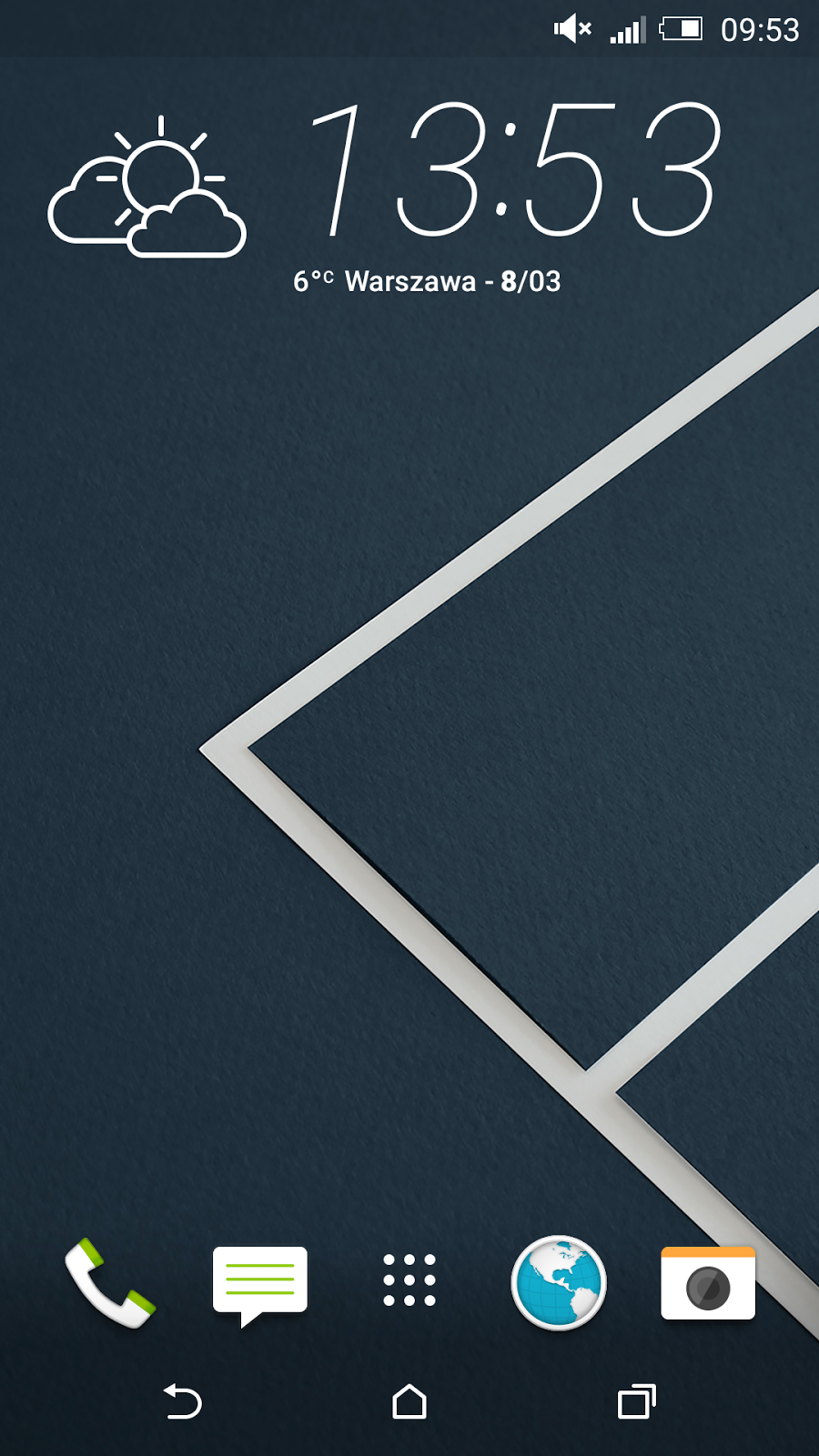
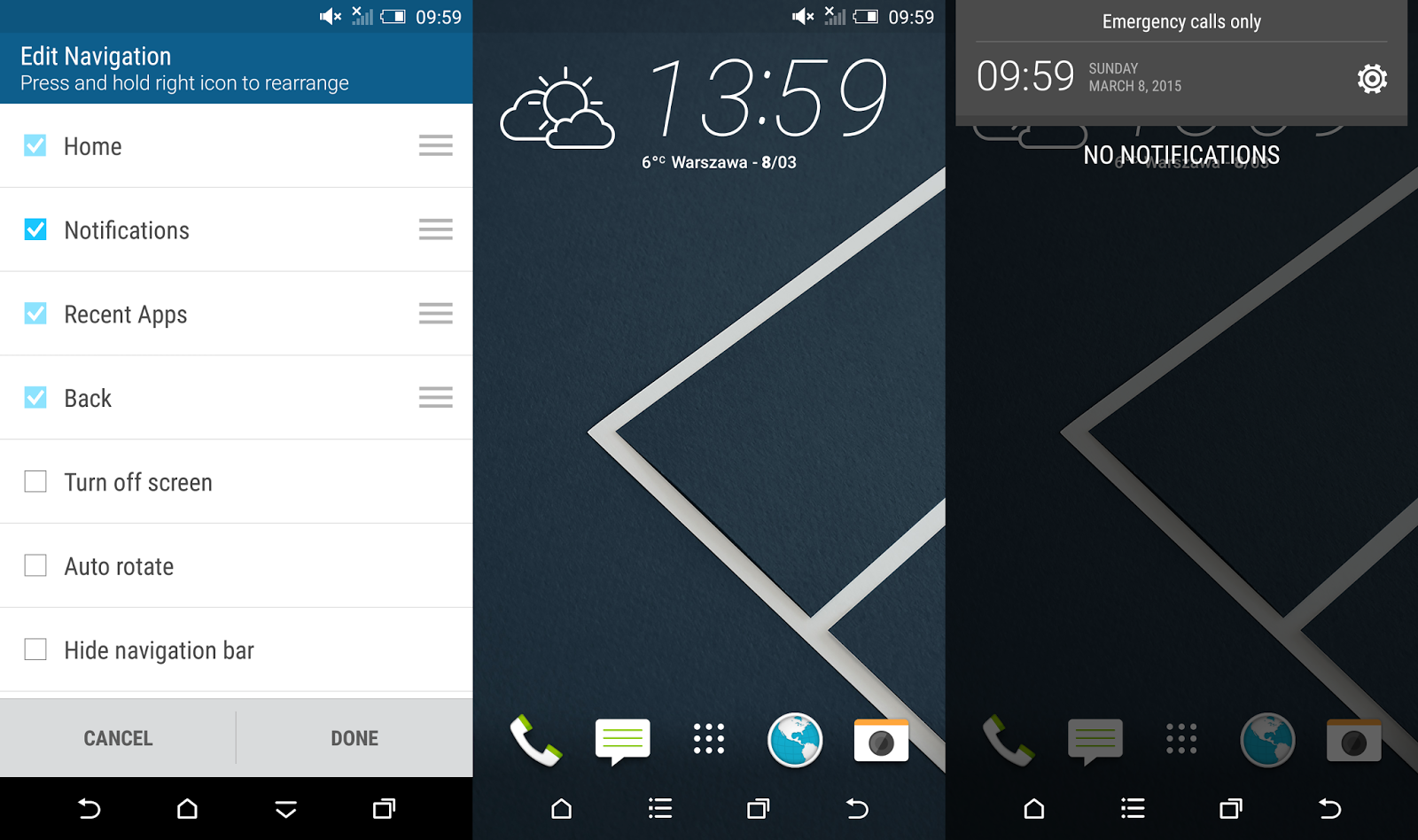
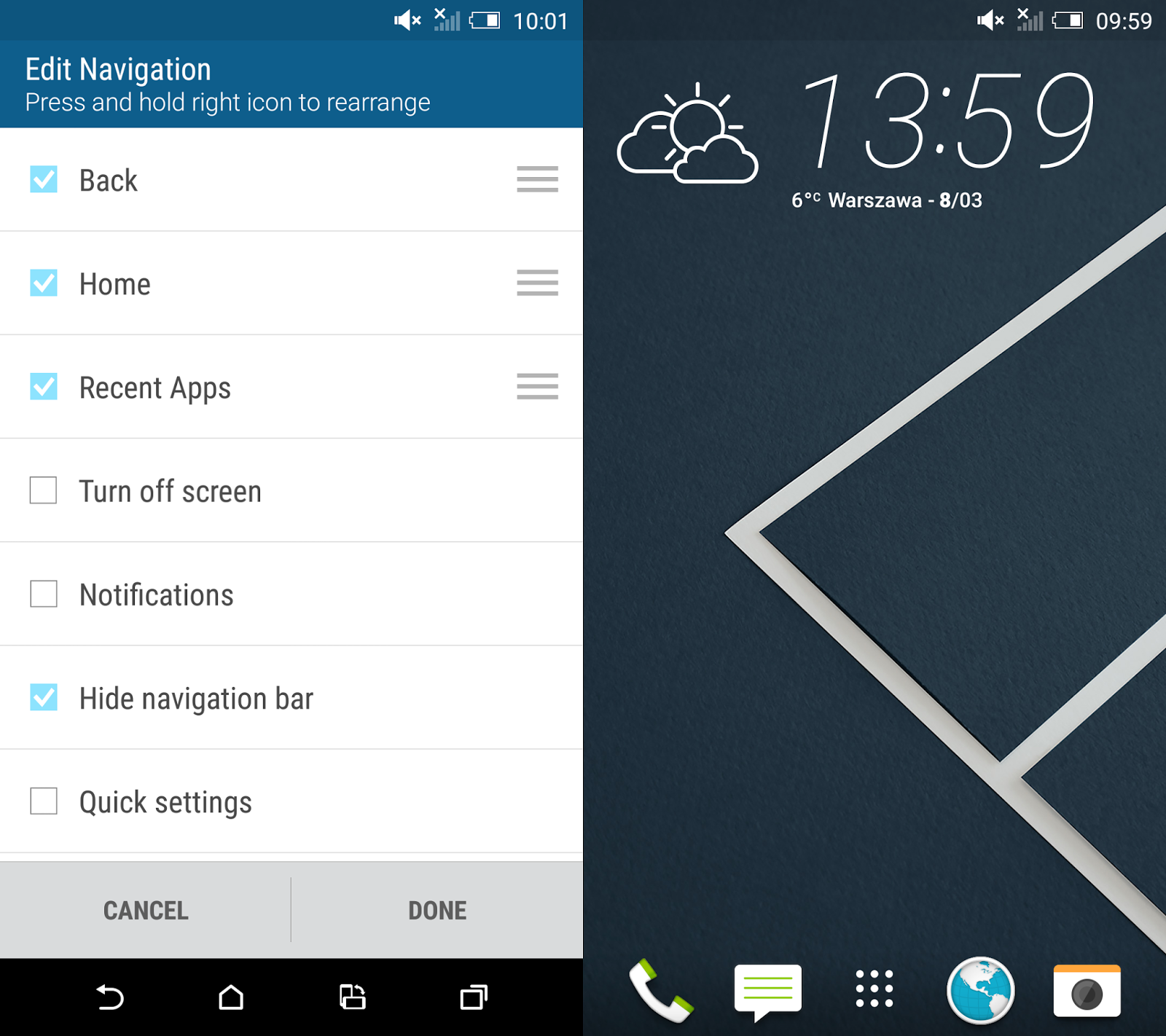
Youve probably heard already about the new cool HTC Sense 7.0 feature called Themes Generator. In fact thats not the only surprise in the newest HTC custom user interface. In the sixth version of the Sense UI HTC opted for extensive configuration options of the Android Navigation Bar. Now in addition to the existing three main on-screen buttons you can choose a 4th button with a specific function.


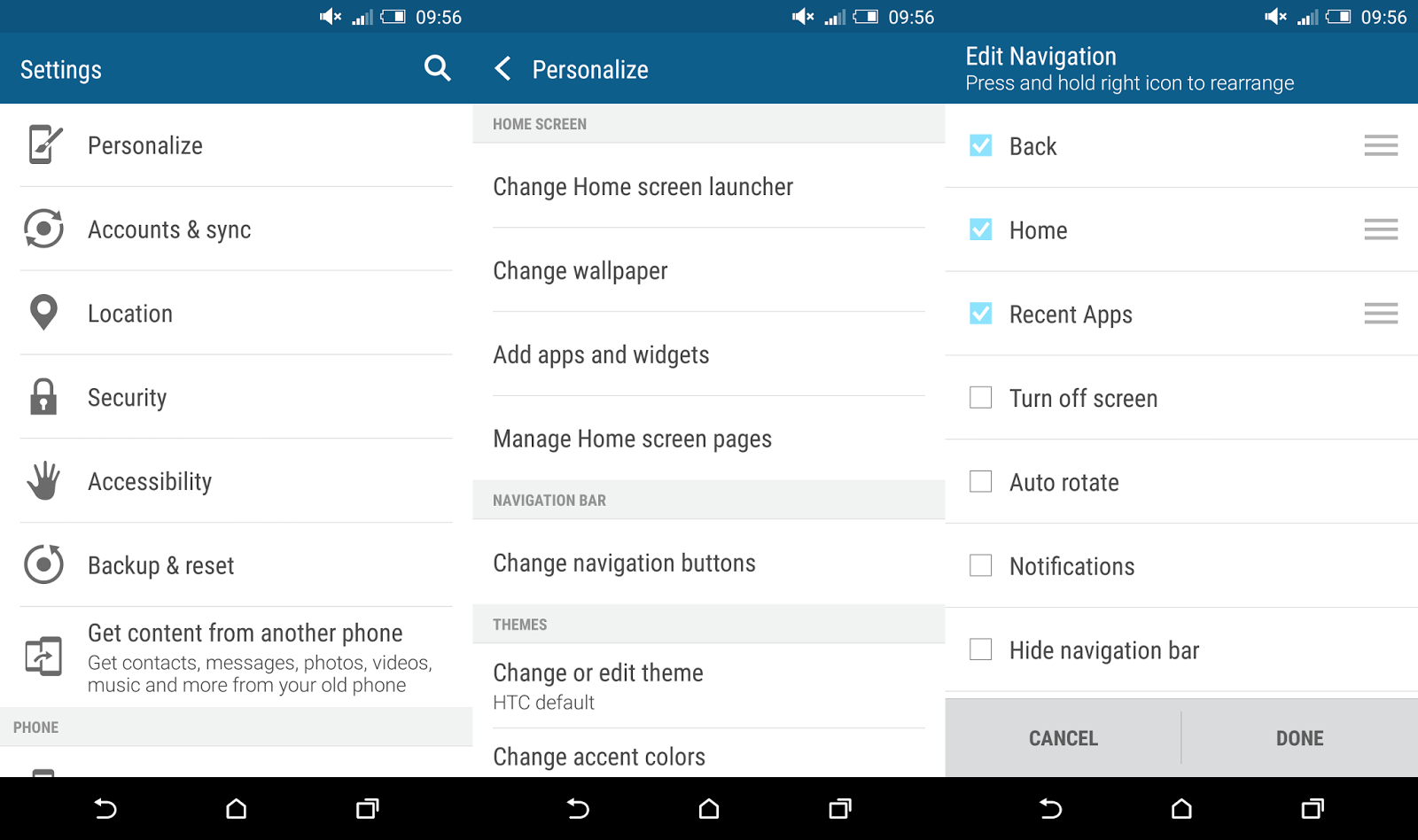
To enter these settings you need to go to Settings ---> Personalize ---> Change navigation button. As you can see, HTC gave us a couple of options there:
  • Back
  • Home
  • Recent apps

These are the default on-screen buttons and you cant disable any of it. Plus we got several more, but you can enable only one at a time:
  • Turn off screen
  • Auto rotate
  • Notifications
  • Quick settings
  • Hide navigation bar
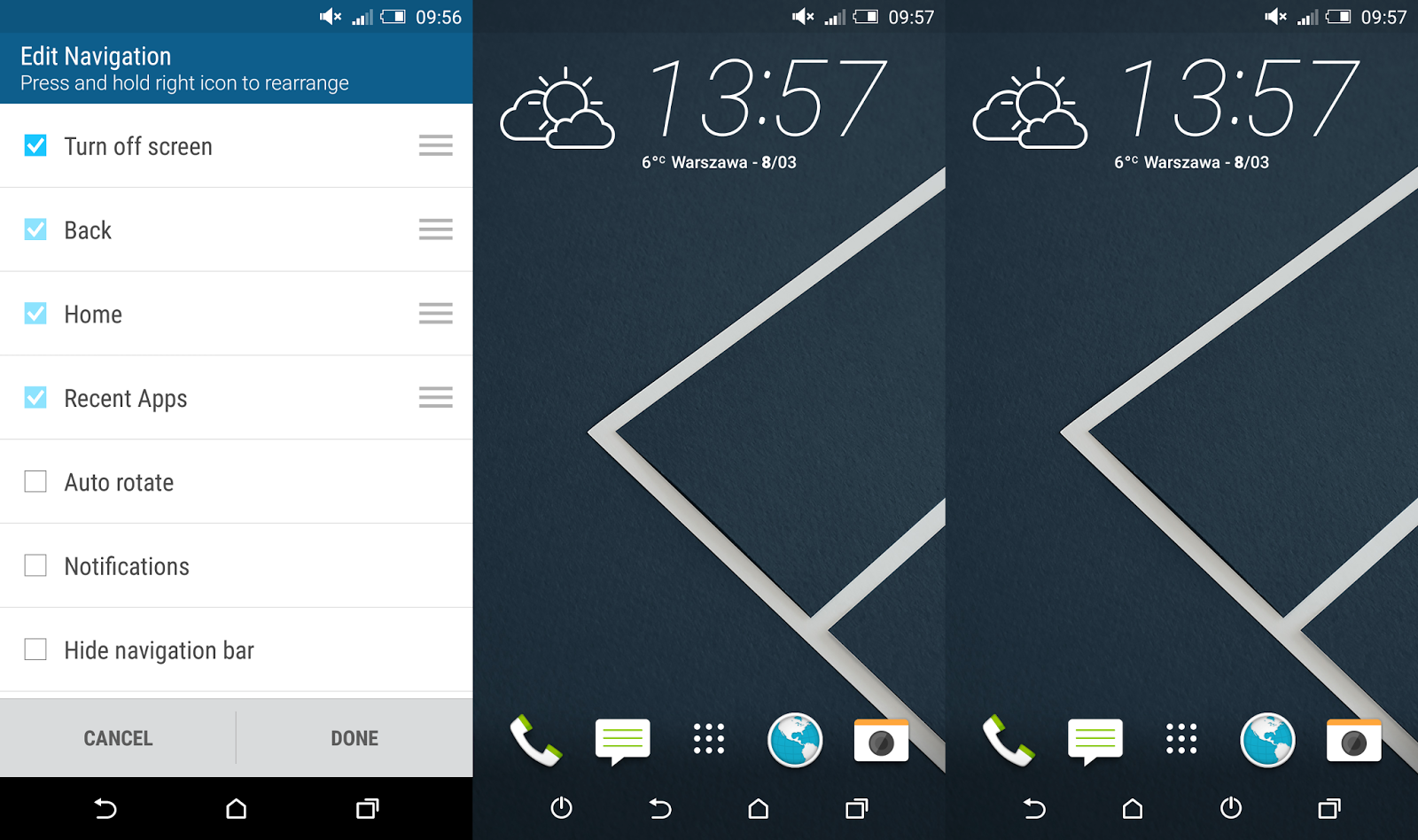
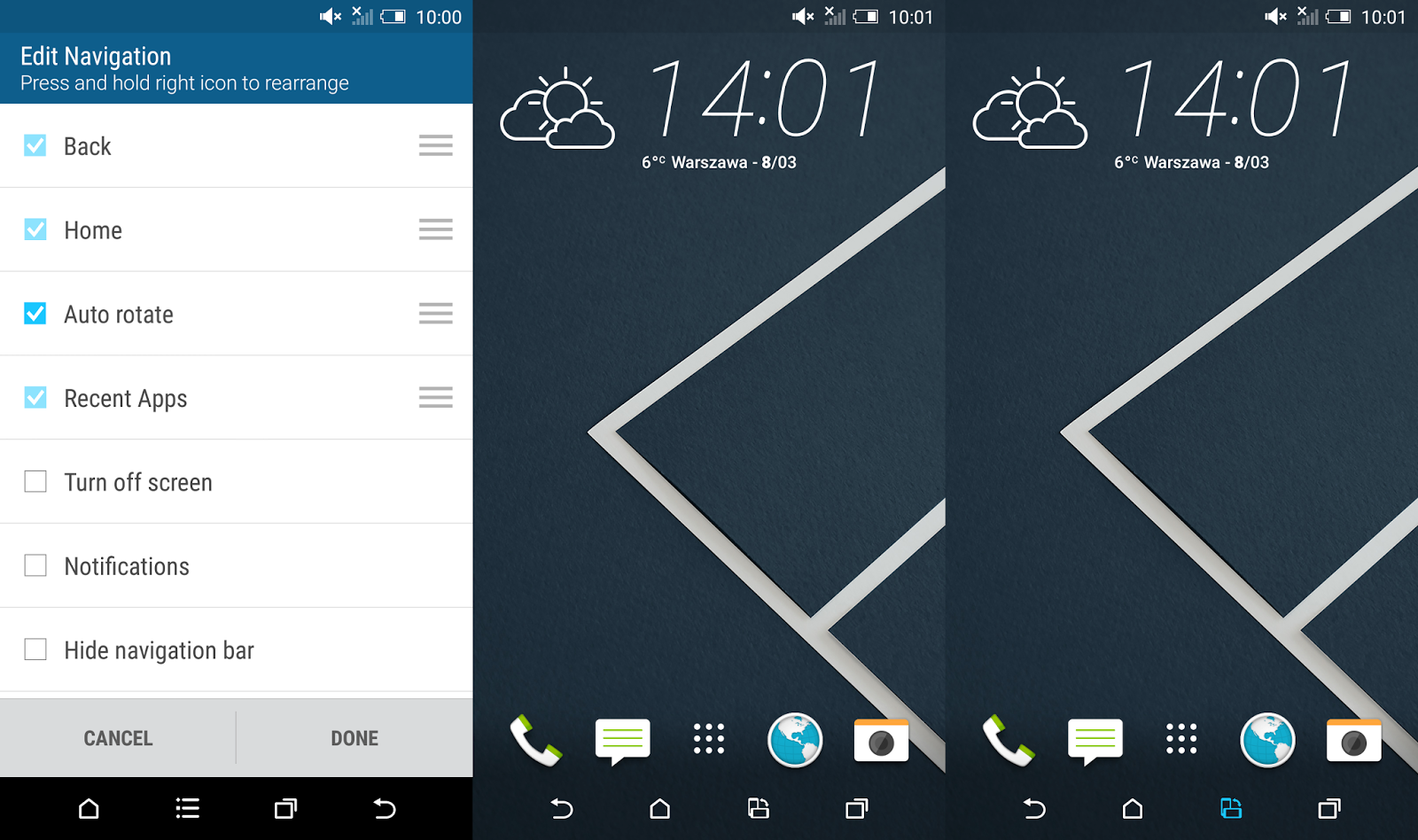
According to the screenshot you can not only add a 4th button but also re-arrange the position of all buttons. That means you can have your extra button either on the right or left side of the navigation bar or between other buttons.

The "Turn off screen" button can be really handy in case you want to switch off your screen really fast, without moving the finger outside the screen area. In combination with HTC Motion Launch Gestures (double tap to wake-up in this case) you dont need to use power button any more!


The "Auto rotate" feature doesnt seems like something I would access few times a day. Personally I would prefer to have a "Rotate" function there to force the screen orientation I want to use in a particular moment, no matter how I keep the device (horizontally or vertically).


The "Notifications" button is a great alternate for the swipe down the status bar gesture when you want to access notifications.


The "Quick Settings" button, just like "Notifications" button allows you to quick access the pull down menu without having to swipe down from the top of the screen.


Last but not least, the "Hide navigation bar" button is one of my favourite. It allows you to completely hide the navigation bar and visually enlarge the home screen. To bring it back you just need to swipe up from the bottom part of the screen. Cool, isnt it?


Do you have any questions or comments? Feel free to share! Also, if you like this article, please use media sharing buttons (Twitter, G+, Facebook) below this post!


For latest news follow Android Revolution HD on popular social platforms:

Read More..

Wednesday, November 2, 2016

Custom email apps and more for Google Domains


(Cross-posted on the Google and Your Business Blog.)

Last year we introduced Google Domains in the U.S. to make it easy for your business to get online with a domain name and website. We wanted to make finding, buying and managing domains for your business simple, and we partnered with best-in-class website builders like Blogger, Shopify, Squarespace, Weebly and Wix to help you create your site no technical experience required.

Since then, weve helped people register hundreds of thousands of domain names and create tens of thousands of websites, many of whom are businesses like yours looking to build and expand their online presence. Through your continued feedback, today we’re introducing upgrades to improve the Google Domains experience by adding:

  • Custom email addresses create an email address like, you@yourdomain or sales@yourdomain via Google Apps for Work.
  • Over 90 new domain name endings  purchase domains with new endings like, .life, .world, .business, .cool, .pizza, .gifts, and .football (here’s the new full list).
  • Domain ownership transfer  allows you to always make sure the right person is managing the right domains (learn more here).

Custom email addresses are a key part of building your online identity. Email addresses such as you@yourdomain help you establish credibility when you communicate with customers. Setting up a custom email address with Google Domains is an optional service for $5/month/user, and with that you’ll also get the full Google Apps for Work productivity suite. Google Apps for Work includes helpful business tools like video meetings, shared calendars, online document editing and 30 GB of file storage.
New domain name endings offer more choice and flexibility as you pick a memorable address for your business website. New endings are continuously opening up to the web, like .legal, .accountant and .services, and can help you create a name that matches who you are and what you do. Check out some of the people on Google Domains already using these new domain name endings: sublimation.kitchen, smilesnap.social, thecooler.ninja, and marcblair.photography.
It’s our mission to help your business easily get online and succeed with a domain name, and we want to make sure we continue to offer you the best tools and experience possible in our beta. So, if you have any input, questions or feedback, please don’t be shy!

See you online at www.google.com/domains.
Read More..

Tuesday, November 1, 2016

First custom ROM based on HTC Sense 5 5 is out for HTC One!

Yes, here it is! The one youve been waiting for! Android Revolution HD 30.0 is the world first custom ROM for the HTC One based on Android 4.3 and new HTC Sense 5.5 UI.

Just grab it from downloads section!

My XDA-Developers thread with link to follow my work - http://goo.gl/UajIh2

Have any questions or comments? Feel free to share! Also, if you like this article, please use media sharing buttons (Twitter, G+, Facebook) below this post!
Read More..

Tuesday, May 24, 2016

HTC One M8 2014 first custom recovery first custom ROM


Yesterday the new HTC One M8 was launched and today I would like to inform you that you can already root it and flash your favourite custom ROM on it! :)

Custom recovery for the HTC M8 - link
Android Revolution HD for the HTC M8 - link

Have any questions or comments? Feel free to share! Also, if you like this article, please use media sharing buttons (Twitter, G+, Facebook) below this post!


For latest news follow Android Revolution HD on popular social platforms:

Read More..

Thursday, May 19, 2016

KitKat for HTC One Google Edition is out Sense version coming soon!


Android "four point four" (aka KitKat) is what most HTC One users are still eagerly waiting for. The "senseless" version is already available to download via Over The Air (OTA) update on the HTC One Google Play Edition.

If you havent received the update yet, or you dont have a Google Play Edition variant of the HTC One, you can still have a taste of the fresh Google goody. Just navigate to my HTC One Google Play Edition thread on the xda-developers forum and download Android Revolution HD based on Android 4.4 KitKat for the HTC One.

What weve already learned so far is that youll probably need an S-OFF device in order to properly boot KitKat custom ROM. Its a weird issue we still investigate and we hope to come up with some more convenient solution soon!

Also some good news for HTC Sense fans - Android 4.4 with HTC Sense 5.5 on board will be available very soon! Dont be upset its still Sense 5.5 instead of Sense 6.0. New update will bring a lot of bugs fixes and all the goodies Android 4.4 comes with. Stay tuned!

Have any questions or comments? Feel free to share! Also, if you like this article, please use media sharing buttons (Twitter, G+, Facebook) below this post!
Read More..

Friday, February 26, 2016

Custom InfoWindow for Google Maps Android API v2


To create Custom InfoWindow for Google Maps Android API v2:

- Make your Activity implements GoogleMap.InfoWindowAdapter.

- Override getInfoWindow(Marker marker) and getInfoContents(Marker marker).

The API will first call getInfoWindow(Marker) and if null is returned, it will then call getInfoContents(Marker). If this also returns null, then the default info window will be used.

The first of these (getInfoWindow()) allows you to provide a view that will be used for the entire info window. The second of these (getInfoContents()) allows you to just customize the contents of the window but still keep the default info window frame and background.

- setInfoWindowAdapter(this).


Modify MapsActivity.java from last example "Make GoogleMaps marker draggabe and detect moving marker".
package com.blogspot.android_er.androidstudiomapapp;

import android.app.AlertDialog;
import android.content.DialogInterface;
import android.content.Intent;
import android.graphics.drawable.Drawable;
import android.net.Uri;
import android.os.Bundle;
import android.support.v7.app.AppCompatActivity;
import android.text.InputType;
import android.view.Menu;
import android.view.MenuItem;
import android.view.View;
import android.widget.EditText;
import android.widget.ImageView;
import android.widget.LinearLayout;
import android.widget.TextView;
import android.widget.Toast;

import com.google.android.gms.common.GoogleApiAvailability;
import com.google.android.gms.maps.CameraUpdateFactory;
import com.google.android.gms.maps.GoogleMap;
import com.google.android.gms.maps.OnMapReadyCallback;
import com.google.android.gms.maps.SupportMapFragment;
import com.google.android.gms.maps.model.LatLng;
import com.google.android.gms.maps.model.Marker;
import com.google.android.gms.maps.model.MarkerOptions;

public class MapsActivity extends AppCompatActivity implements OnMapReadyCallback,
GoogleMap.OnMapClickListener, GoogleMap.OnMapLongClickListener,
GoogleMap.OnMarkerDragListener, GoogleMap.InfoWindowAdapter {

private GoogleMap mMap;

@Override
protected void onCreate(Bundle savedInstanceState) {
super.onCreate(savedInstanceState);
setContentView(R.layout.activity_maps);
// Obtain the SupportMapFragment and get notified when the map is ready to be used.
SupportMapFragment mapFragment = (SupportMapFragment) getSupportFragmentManager()
.findFragmentById(R.id.map);
mapFragment.getMapAsync(this);

}

/**
* Manipulates the map once available.
* This callback is triggered when the map is ready to be used.
* This is where we can add markers or lines, add listeners or move the camera. In this case,
* we just add a marker near Sydney, Australia.
* If Google Play services is not installed on the device, the user will be prompted to install
* it inside the SupportMapFragment. This method will only be triggered once the user has
* installed Google Play services and returned to the app.
*/
@Override
public void onMapReady(GoogleMap googleMap) {
mMap = googleMap;
mMap.setOnMapClickListener(this);
mMap.setOnMapLongClickListener(this);
mMap.setOnMarkerDragListener(this);
mMap.setInfoWindowAdapter(this);
}

@Override
public boolean onCreateOptionsMenu(Menu menu) {
getMenuInflater().inflate(R.menu.activity_main, menu);
return super.onCreateOptionsMenu(menu);
}

@Override
public boolean onOptionsItemSelected(MenuItem item) {
switch (item.getItemId()) {
case R.id.menu_addmarkers:
addMarker();
return true;
case R.id.maptypeHYBRID:
if(mMap != null){
mMap.setMapType(GoogleMap.MAP_TYPE_HYBRID);
return true;
}
case R.id.maptypeNONE:
if(mMap != null){
mMap.setMapType(GoogleMap.MAP_TYPE_NONE);
return true;
}
case R.id.maptypeNORMAL:
if(mMap != null){
mMap.setMapType(GoogleMap.MAP_TYPE_NORMAL);
return true;
}
case R.id.maptypeSATELLITE:
if(mMap != null){
mMap.setMapType(GoogleMap.MAP_TYPE_SATELLITE);
return true;
}
case R.id.maptypeTERRAIN:
if(mMap != null){
mMap.setMapType(GoogleMap.MAP_TYPE_TERRAIN);
return true;
}
case R.id.menu_legalnotices:
String LicenseInfo = GoogleApiAvailability
.getInstance()
.getOpenSourceSoftwareLicenseInfo(MapsActivity.this);
AlertDialog.Builder LicenseDialog =
new AlertDialog.Builder(MapsActivity.this);
LicenseDialog.setTitle("Legal Notices");
LicenseDialog.setMessage(LicenseInfo);
LicenseDialog.show();
return true;
case R.id.menu_about:
AlertDialog.Builder aboutDialogBuilder =
new AlertDialog.Builder(MapsActivity.this);
aboutDialogBuilder.setTitle("About Me")
.setMessage("http://android-er.blogspot.com");

aboutDialogBuilder.setPositiveButton("visit",
new DialogInterface.OnClickListener() {
@Override
public void onClick(DialogInterface dialog, int which) {
String url = "http://android-er.blogspot.com";
Intent i = new Intent(Intent.ACTION_VIEW);
i.setData(Uri.parse(url));
startActivity(i);
}
});

aboutDialogBuilder.setNegativeButton("Dismiss",
new DialogInterface.OnClickListener() {
@Override
public void onClick(DialogInterface dialog, int which) {
dialog.cancel();
}
});

AlertDialog aboutDialog = aboutDialogBuilder.create();
aboutDialog.show();

return true;
}
return super.onOptionsItemSelected(item);
}

private void addMarker(){
if(mMap != null){

//create custom LinearLayout programmatically
LinearLayout layout = new LinearLayout(MapsActivity.this);
layout.setLayoutParams(new LinearLayout.LayoutParams(
LinearLayout.LayoutParams.MATCH_PARENT,
LinearLayout.LayoutParams.WRAP_CONTENT));
layout.setOrientation(LinearLayout.VERTICAL);

final EditText titleField = new EditText(MapsActivity.this);
titleField.setHint("Title");

final EditText latField = new EditText(MapsActivity.this);
latField.setHint("Latitude");
latField.setInputType(InputType.TYPE_CLASS_NUMBER
| InputType.TYPE_NUMBER_FLAG_DECIMAL
| InputType.TYPE_NUMBER_FLAG_SIGNED);

final EditText lonField = new EditText(MapsActivity.this);
lonField.setHint("Longitude");
lonField.setInputType(InputType.TYPE_CLASS_NUMBER
| InputType.TYPE_NUMBER_FLAG_DECIMAL
| InputType.TYPE_NUMBER_FLAG_SIGNED);

layout.addView(titleField);
layout.addView(latField);
layout.addView(lonField);

AlertDialog.Builder builder = new AlertDialog.Builder(this);
builder.setTitle("Add Marker");
builder.setView(layout);
AlertDialog alertDialog = builder.create();

builder.setPositiveButton("OK", new DialogInterface.OnClickListener() {
@Override
public void onClick(DialogInterface dialog, int which) {
boolean parsable = true;
Double lat = null, lon = null;

String strLat = latField.getText().toString();
String strLon = lonField.getText().toString();
String strTitle = titleField.getText().toString();

try{
lat = Double.parseDouble(strLat);
}catch (NumberFormatException ex){
parsable = false;
Toast.makeText(MapsActivity.this,
"Latitude does not contain a parsable double",
Toast.LENGTH_LONG).show();
}

try{
lon = Double.parseDouble(strLon);
}catch (NumberFormatException ex){
parsable = false;
Toast.makeText(MapsActivity.this,
"Longitude does not contain a parsable double",
Toast.LENGTH_LONG).show();
}

if(parsable){

LatLng targetLatLng = new LatLng(lat, lon);
MarkerOptions markerOptions =
new MarkerOptions().position(targetLatLng).title(strTitle);

markerOptions.draggable(true);

mMap.addMarker(markerOptions);
mMap.moveCamera(CameraUpdateFactory.newLatLng(targetLatLng));

}
}
});
builder.setNegativeButton("Cancel", null);

builder.show();
}else{
Toast.makeText(MapsActivity.this, "Map not ready", Toast.LENGTH_LONG).show();
}
}

@Override
public void onMapClick(LatLng latLng) {
Toast.makeText(MapsActivity.this,
"onMapClick: " + latLng.latitude + " : " + latLng.longitude,
Toast.LENGTH_LONG).show();
}

@Override
public void onMapLongClick(LatLng latLng) {
Toast.makeText(MapsActivity.this,
"onMapLongClick: " + latLng.latitude + " : " + latLng.longitude,
Toast.LENGTH_LONG).show();

//Add marker on LongClick position
MarkerOptions markerOptions =
new MarkerOptions().position(latLng).title(latLng.toString());
markerOptions.draggable(true);

mMap.addMarker(markerOptions);
}


@Override
public void onMarkerDragStart(Marker marker) {
marker.setTitle(marker.getPosition().toString());
marker.showInfoWindow();
marker.setAlpha(0.5f);
}

@Override
public void onMarkerDrag(Marker marker) {
marker.setTitle(marker.getPosition().toString());
marker.showInfoWindow();
marker.setAlpha(0.5f);
}

@Override
public void onMarkerDragEnd(Marker marker) {
marker.setTitle(marker.getPosition().toString());
marker.showInfoWindow();
marker.setAlpha(1.0f);
}

@Override
public View getInfoWindow(Marker marker) {
return null;
//return prepareInfoView(marker);
}


@Override
public View getInfoContents(Marker marker) {
//return null;
return prepareInfoView(marker);

}


private View prepareInfoView(Marker marker){
//prepare InfoView programmatically
LinearLayout infoView = new LinearLayout(MapsActivity.this);
LinearLayout.LayoutParams infoViewParams = new LinearLayout.LayoutParams(
LinearLayout.LayoutParams.WRAP_CONTENT, LinearLayout.LayoutParams.WRAP_CONTENT);
infoView.setOrientation(LinearLayout.HORIZONTAL);
infoView.setLayoutParams(infoViewParams);

ImageView infoImageView = new ImageView(MapsActivity.this);
//Drawable drawable = getResources().getDrawable(R.mipmap.ic_launcher);
Drawable drawable = getResources().getDrawable(android.R.drawable.ic_dialog_map);
infoImageView.setImageDrawable(drawable);
infoView.addView(infoImageView);

LinearLayout subInfoView = new LinearLayout(MapsActivity.this);
LinearLayout.LayoutParams subInfoViewParams = new LinearLayout.LayoutParams(
LinearLayout.LayoutParams.WRAP_CONTENT, LinearLayout.LayoutParams.WRAP_CONTENT);
subInfoView.setOrientation(LinearLayout.VERTICAL);
subInfoView.setLayoutParams(subInfoViewParams);

TextView subInfoLat = new TextView(MapsActivity.this);
subInfoLat.setText("Lat: " + marker.getPosition().latitude);
TextView subInfoLnt = new TextView(MapsActivity.this);
subInfoLnt.setText("Lnt: " + marker.getPosition().longitude);
subInfoView.addView(subInfoLat);
subInfoView.addView(subInfoLnt);
infoView.addView(subInfoView);

return infoView;
}

}


Reference: https://developers.google.com/maps/documentation/android-api/infowindows

Next:
- Detect user click on InfoWindow, by implementing GoogleMap.OnInfoWindowClickListener()


~ Step-by-step of Android Google Maps Activity using Google Maps Android API v2, on Android Studio

Read More..

Thursday, March 13, 2014

1 144 GM Sniper II Space Custom Custom Build

1/144 GM Sniper II Space Custom - Custom Build

Modeled by beatla


Read More..